
Showing posts with label How To. Show all posts
Showing posts with label How To. Show all posts

Search Engine Optimization (SEO) is the most important thing to learn for best blogging experience. Without proper blog optimization, we can’t even dream to get impressive traffic from search engines. From past few days, I am getting too much request of newbie bloggers to share some On-Page SEO Tips. That’s why today I plan to mention all those On Page SEO tips which I already shared on my blog in my earlier posts. I’m sorry if you have read those posts before, but I need to grab attention of newbie bloggers who just start learning SEO for their blog. All those tips are must to know by every blogger.
So, let’s take a look on best On-page SEO Tips for Blogspot Blogs and if you have read them before then don’t ignore this post. May be you learn something new which you missed before because of any reason.
On Page Search Engine Optimization Tips For Blogspot
Below are the tips and tricks that will be beneficial for you to optimize your blog for Google and other search engines. Read them carefully and apply all of them on your blog to make your blog lovable and trust worthy for search engines.
#1 Custom Robots Header Tags
There are some settings for bloggers that they can personally do for their blogs to make their blogs for SEO friendly. Custom Robots Header Tags setting in one of them. It’ll be beneficial for you to use custom robots headers tags correctly. It’s easy to manage these settings.
#2 Custom Robots.txt
Search engine bots like Googlebot (Web Crawling Robot of Google) needs some guidelines on how they have to crawl and index our blog. We can prevent some non-important pages labels pages from indexing in Google to protect our blog from duplicate content issues. Read this article to add custom robots.txt file in blogger.
#3 Optimize Blog Post Titles
If you just started your blog on blogger’s default template, then definitely you’ll not be aware with this fact that your post titles are not properly optimized for search engines. You need to do some editing in your blog template to make your post titles properly optimized. You will see a noticeable change in organic traffic of your blog after making this change.
#4 Image Optimization
You may definitely notice relevant images between the posts on many blogs. Images not only enhance the look of our content, but it also plays an important role to optimize our blog posts. If we make effective use of images in our blog posts, then we can attain extra traffic from search engines.
Read this ultimate image optimization guide.
#5 Internal Linking SEO
Many bloggers fail to optimize their internal links or even they don’t link their posts to each other internally. This is really a big mistake that we must avoid. Internal linking not only increases our blog page views but also help our posts to rank well in search engines. If you are also doing the same mistake, then you must need some tips to optimize your internal links.
Benefits of Internal Linking in SEO
#6 Search Engine Submission
When we are ready with our blog optimization, then we need to submit our blog in Google’s webmaster tool. Verifying and submitting our blog in Google webmaster tool helps it to get indexed in Google super fast. It also tells about our blog issues like broken links, HTML improvements etc that we must try to resolve. We just need to verify our blog ownership and submit a sitemap. That’s it. If you have not added your blog GWT, then I recommend you to read below tutorial.
Recommended: Submit Blogger Sitemap To Google Webmaster Tools
#7 Improve Your Blog Load Time
If your blog takes lot of time, then visitors will go back and never come back again. It will increase bounce rate of your blog and you’ll lose your valuable traffic. Search engines give more value to fast loading blogs because they want to build best user experience. That’s why it’s very important to optimize blog loading time. I have shared some best tips that can help you to enhance your blog’s loading speed.
Don’t Miss: 9 Tips To Reduce Blogger Blog Load Time
Feedback!
I have mentioned all the On page SEO Tips for Blogspot Blogs in this post which I shared in my blog till yet. I’ll provide more quality tips and tricks in my future posts. All these tips have their own value. So, don’t ignore a single one and optimize your blog as much as possible to get flow of traffic on your blog. Wish you success for your blogging goals.
SEO Tips For Blogspot Blogs

Apparently
many bloggers using the Blogger platform have encountered the problem
of not being able to apply changes to - and hence customise - their
blog's template using Blogger's Template Designer (this I gathered
through Google). I was one of them. Whether or not this had anything
to do with Blogger upgrading to their new interface last Sept/Oct, I'm
not entirely sure; but in my case at least, the timing seemed to
coincide. Having said that and because I'm no techie, I really don't
wanna jump to conclusions and point fingers at the good people at
Google.... and neither should anybody.
Anyway,
the good news is I've figured out how to fix the problem error and have since
customised this blog the way I want it to appear; and here I wish to
share with all how I did it. Now this post may seem longish, but that's
only because of the diagrams I've incorporated for ease of reference;
so bear with me. It's really quite simple.
Step 1. IMPORTANT: You must
first have your mobile template enabled (I really don't know why; I
found out by trial and error that it's a pre-requisite). This is how
you enable it (see Diagram 1): At your blog's dashboard, click on the
arrow-down button located left of the "View Blog" button. Select
"Template".

Diagram 1
* * *
Step 2. At
your template screen (Diagram 2), click on the cogwheel under "Mobile".
This will take you to the "Template > Choose mobile template"
screen (Diagram 3).

Diagram 2
* * *
Step 3. At the "Template > Choose mobile template" screen, select "Yes. Show mobile template on mobile devices". Click "Save".

Diagram 3
Your screen will revert to the "Template" screen as in Diagram 2 above.
* * *
Step 4.
Next click on "Edit HTML". A screen as in Diagram 4 will appear.
Here, click on "Revert widget templates to default" and save. You'll
be taken back to the "Template" screen (Diagram 2).

Diagram 4
* * *
Step 5. Next,
at the "Template" screen, click on the orange "Customise" button. The
"Blogger Template Designer" screen will appear (Diagram 5). Click on
the blue "Remove customisations" link near the top of your screen - this
removes ALL customisations that you've previously made.
If all these steps are done correctly and in that sequence, your blog will have by now reverted to the default Blogger template (boring!). In short, you're on a clean slate. You may now proceed to choose your new preferred template and customise the look of your blog to your whim and fancy using the template designer - and this time, it ought to work.
If all these steps are done correctly and in that sequence, your blog will have by now reverted to the default Blogger template (boring!). In short, you're on a clean slate. You may now proceed to choose your new preferred template and customise the look of your blog to your whim and fancy using the template designer - and this time, it ought to work.

Diagram 5
* * *
I
suspect the problem of Blogger's template designer not showing or
applying changes is due to the numerous customisations you've previously
made to your blog template that may have resulted in some kind of
"conflict" with the Blogger platform. In other words, you fiddled too
much with them. This I believe causes the template designer to
malfunction and become non-responsive. Note: This is notwithstanding
the fact that some of you may have NOT imported any third party HTML
scripts as part of your previous customisations. You'll
find that merely switching templates doesn't solve the problem. I'm
guessing this is because doing this in itself does not remove previous
HTML customisations or reset gadgets.
I've no doubt there are other ways of fixing this problem - but being a tech dummy, this is how I fixed the problem on my blog.... and it worked. Do try out the steps I mentioned if you're facing problems with your template designer and let me know (in the "Comments" field below) whether it works for you. If it does, well and good - but please tell me. If it doesn't, I'm afraid you may need to turn to the experts - please tell me too.
Error problem to change template blogspot

Step-1
Browse the templates in http://template-for.blogspot.com and then choose one, now Click in “Download button” and save file in your hard drive.

Step-2
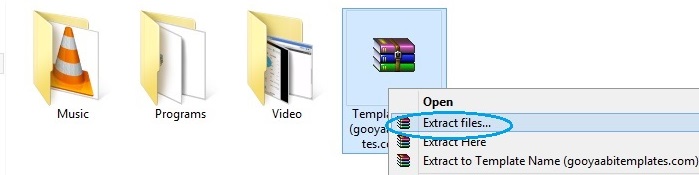
File format that you have downloaded is may be a .ZIP file. so need to be extracted. Please Extract / Unzip it.
Step-4
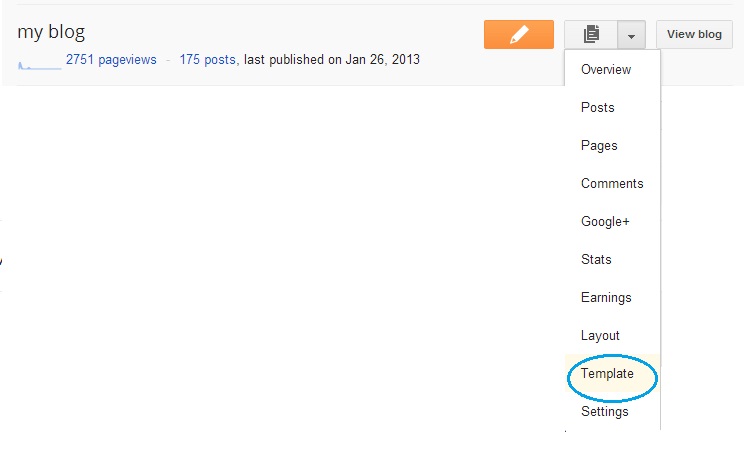
Find your Blog in your Dashboard for you want to change template, and select “Template” in Drop Down menu options.
Step-5
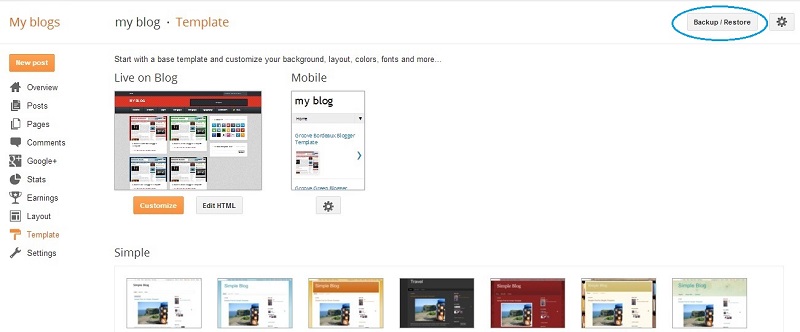
Look at the top right corner, you will see Backup / Restore button
Step-6
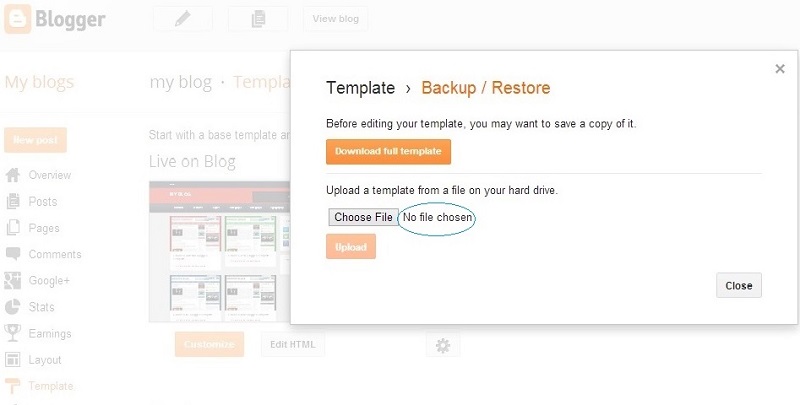
Before doing this, Please backup your
previous template because, if you have any problem after uploading the
new template, the backup file will help you for restore.
Manage on pop-up windows and click
“choose file” button and look for folder that is created after extracted
file that you have downloaded.
Step-7
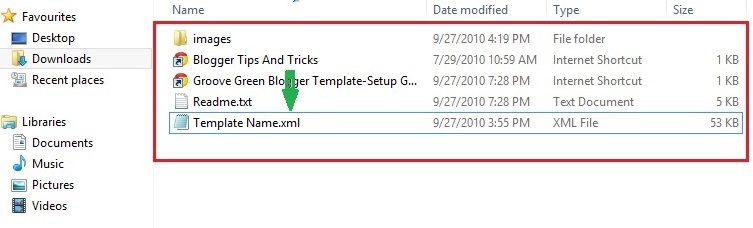
Folder may has a .XML file and .TXT file or Internet shortcuts, you should select only XML file.
Step-8
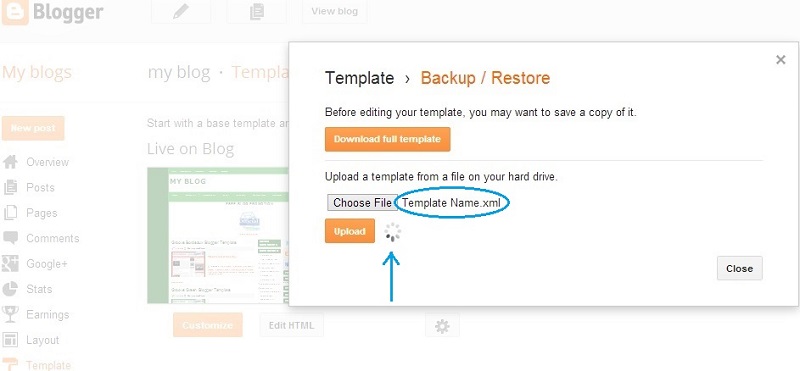
Click Upload button. Now upload process may appear in your screen.
How to install Blogger Template with picture
Subscribe to:
Posts
(
Atom
)


